Documentation
Getting Started
Installation and Access
Network Configuration
Verification and Maintenance
Registering and Signing In to the Network Platform
This page takes you through registering an account on the networking platform and signing in. You enter the same account again later on the gateway.
- A computer with internet access.
- An account name and password decided in advance; write them down after registering.
Steps
Step 1 — Open the networking platform
Open https://easytier.gshelp.xyz in a browser.
Click 注册用户(Register) on the page.
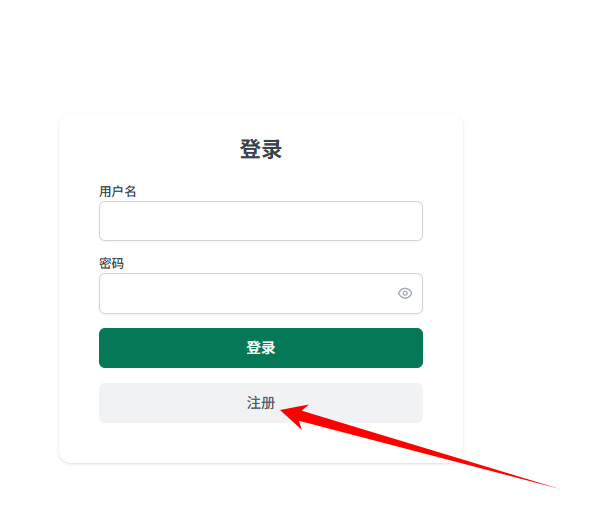
Step 2 — Fill in the registration details
Fill in the account and password as the page prompts, then submit.
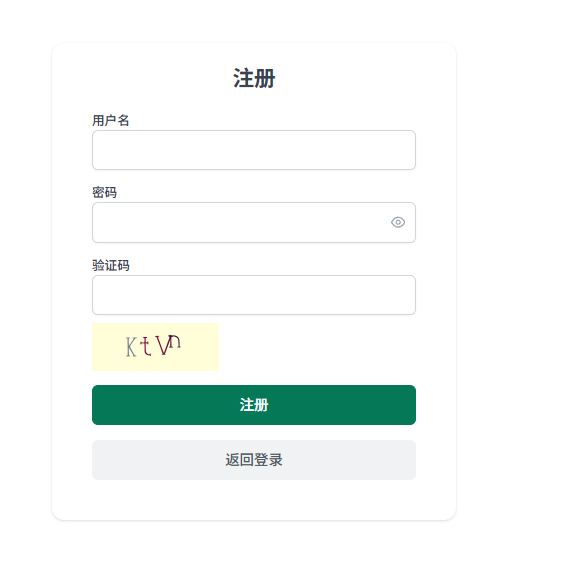
Which fields registration requires depends on what the page actually shows.
Step 3 — Sign in to the platform
Return to the sign-in page and sign in with the account you just registered.
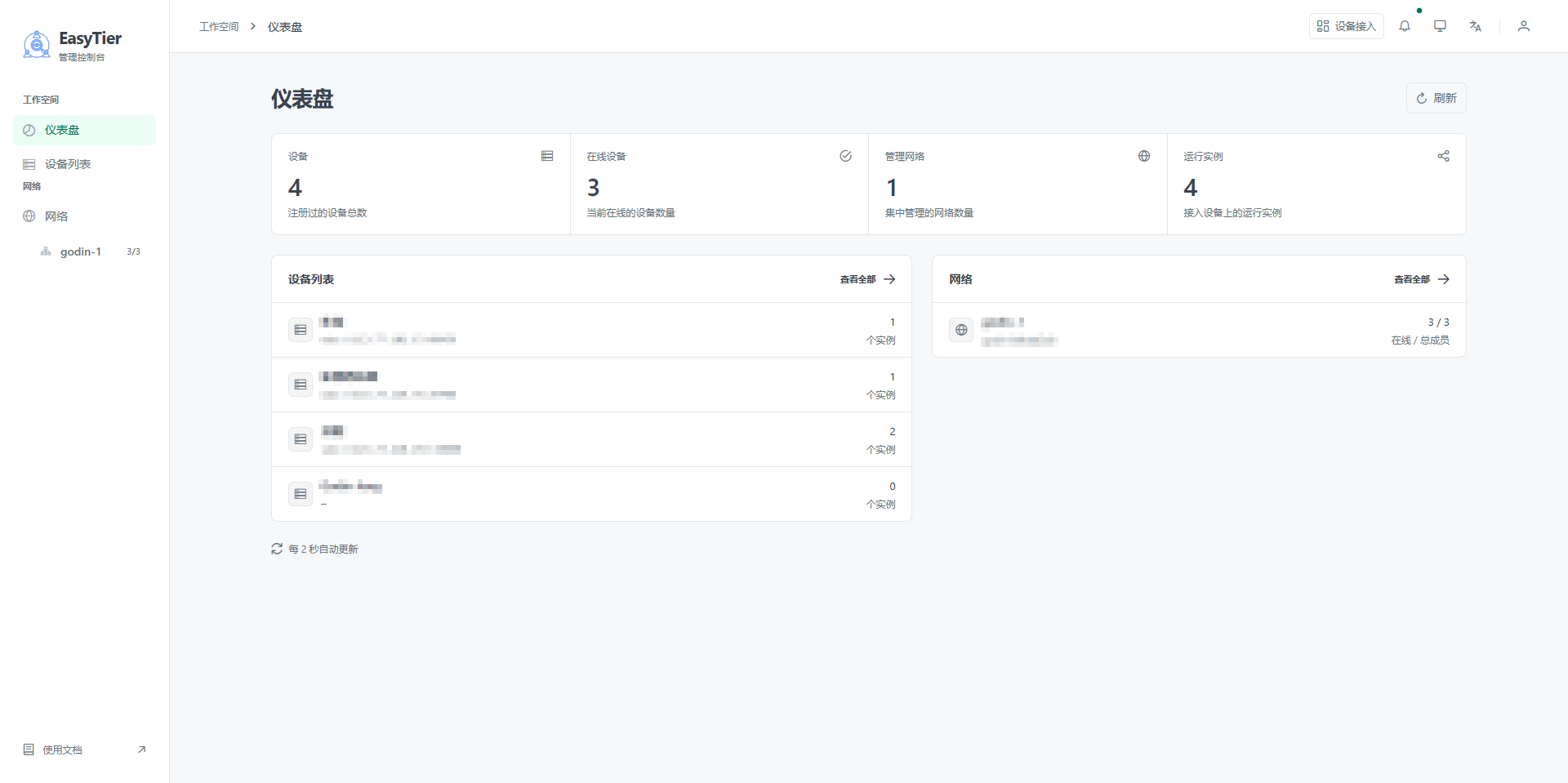
- Sign-in succeeds and the platform home page opens.
- The 设备(Devices) list is empty, which is normal.
Devices appear in the list only after the gateway comes online.
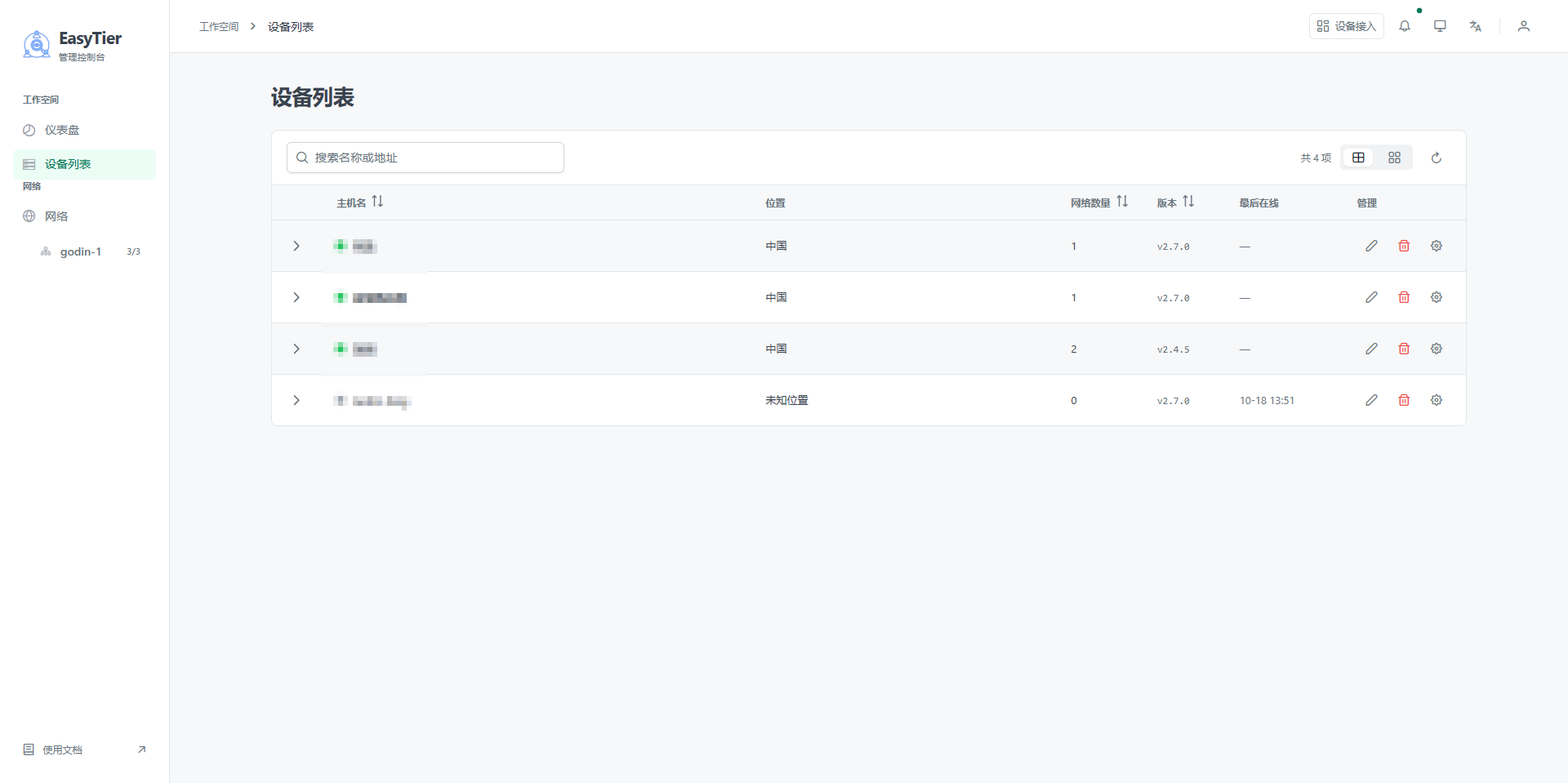
You enter this account name in the gateway's web 服务器地址(Web server address) field. Upper and lower case and spelling must match the platform exactly. One character off and the device never comes online.
Keeping the account safe
- The platform account controls the whole network. Do not pass it on.
- The 账户名(account name) in the address template is the account name from this page:
udp://easytier.gshelp.xyz:22020/accountname - Record the account and password in the project documentation; do not leave them only on someone's phone.
Was this page helpful?A one-line note helps us make these steps more accurate.