Documents
Tour Plan Settings
1. Scene tour
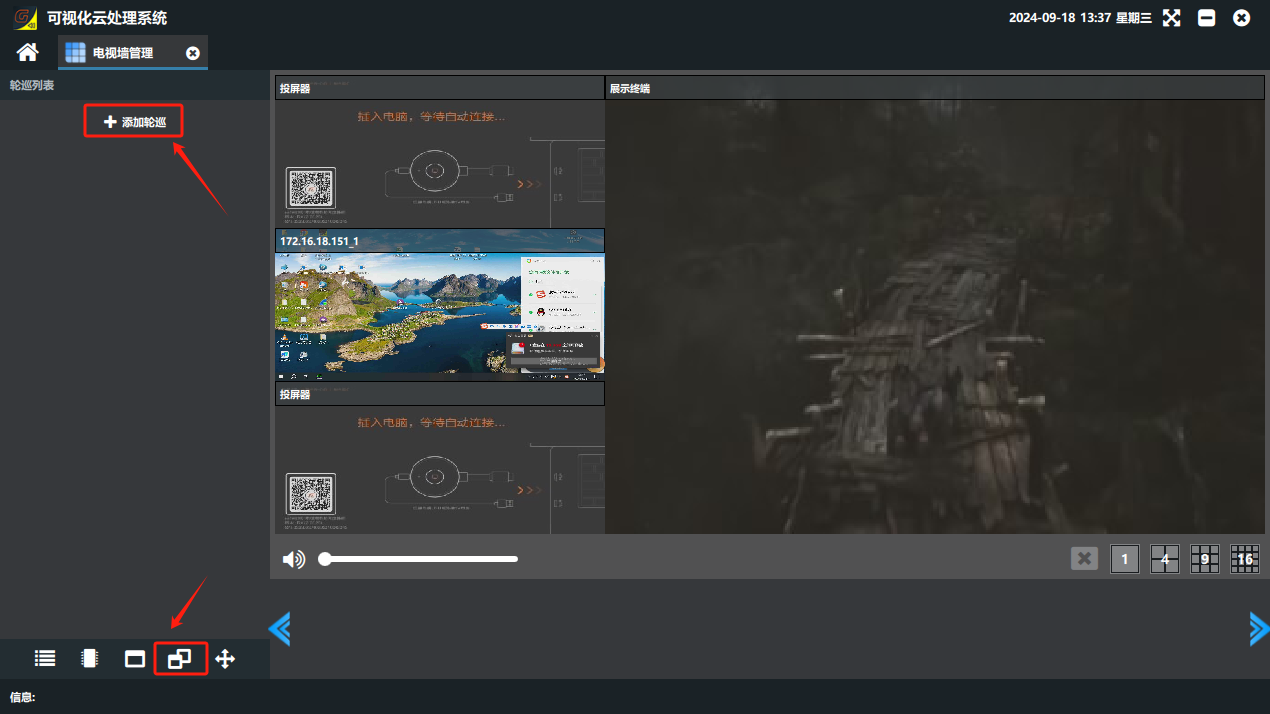
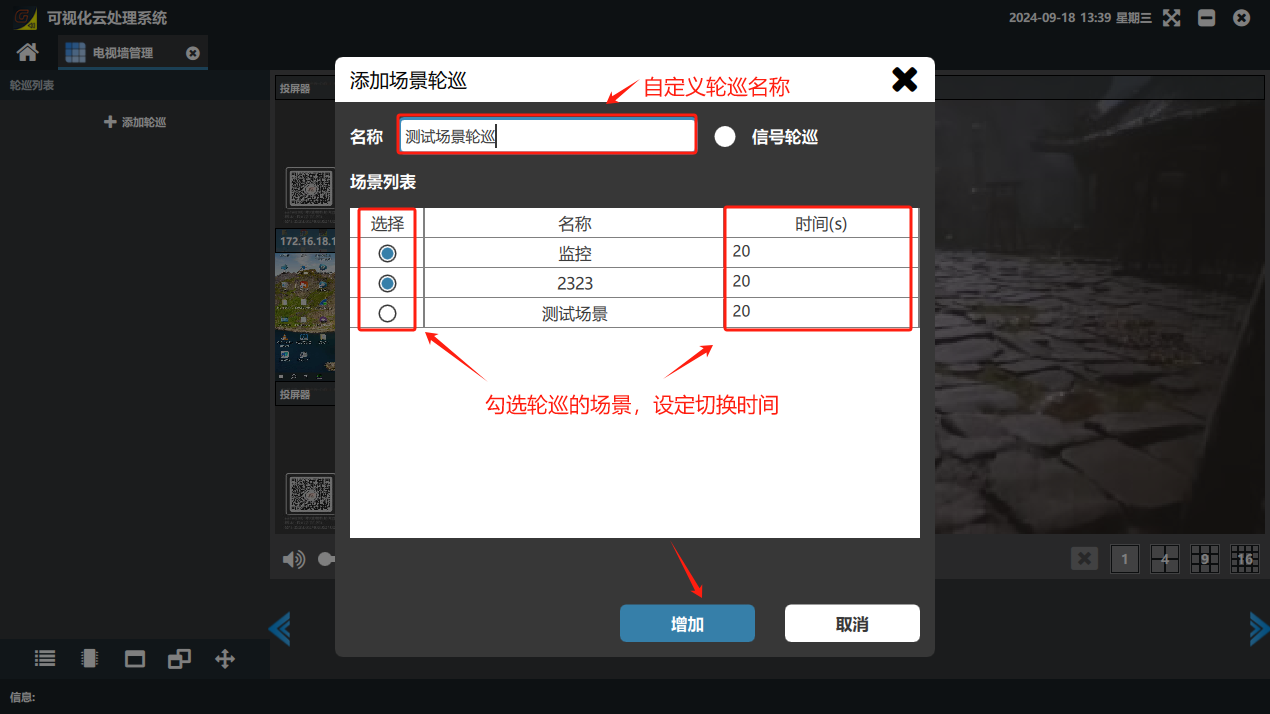
① Click the “轮巡(Tour)” button in the lower-left corner of the software to switch to the tour list and click “Add Tour” → in the “Add Scene Tour” window that opens, enter a custom scene tour name, select the scenes to tour and set the time. (Note: a scene tour requires several scenes to be created first.)

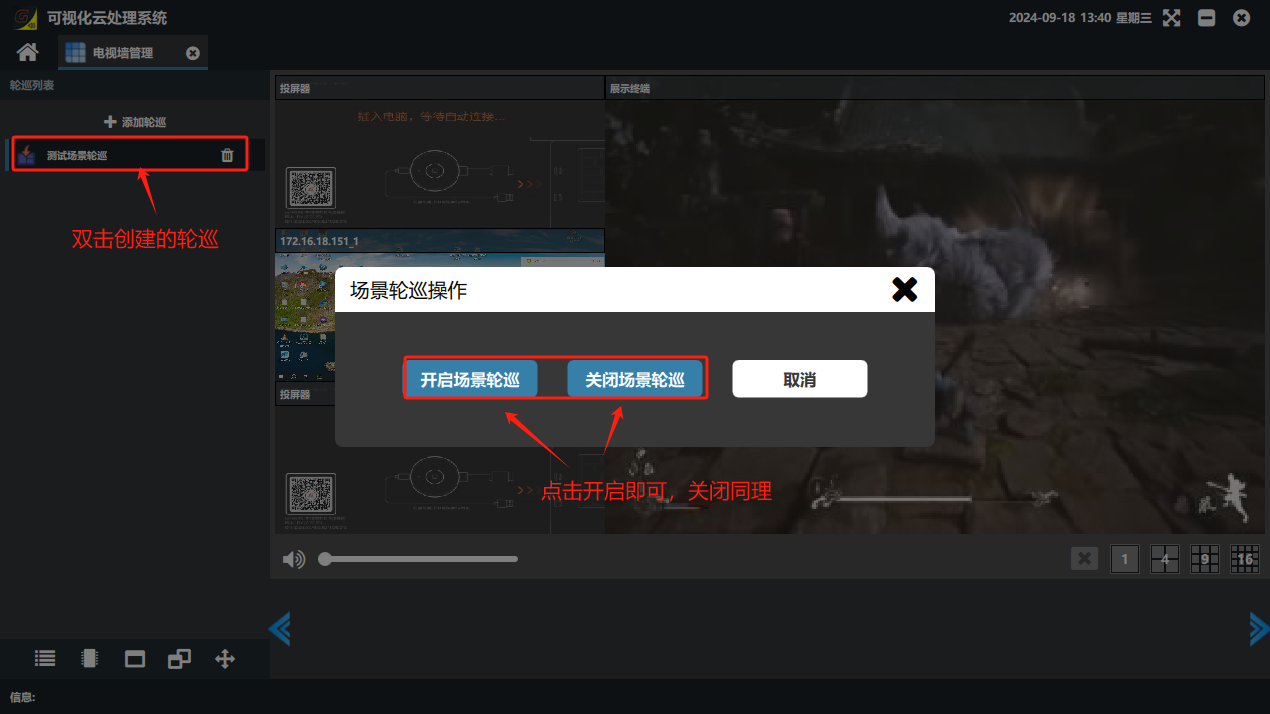
① To run a scene tour, double-click it in the tour list.
2. Signal tour
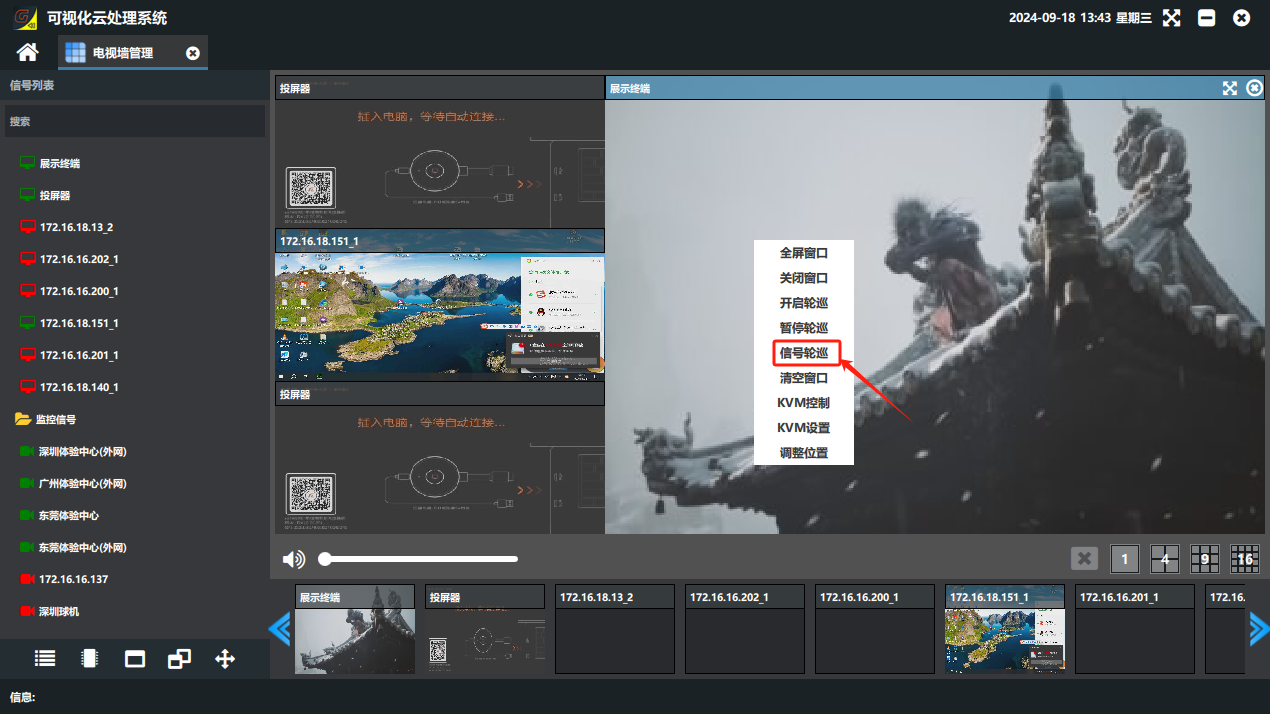
① Right-click the signal window to tour → click “Signal Tour”.
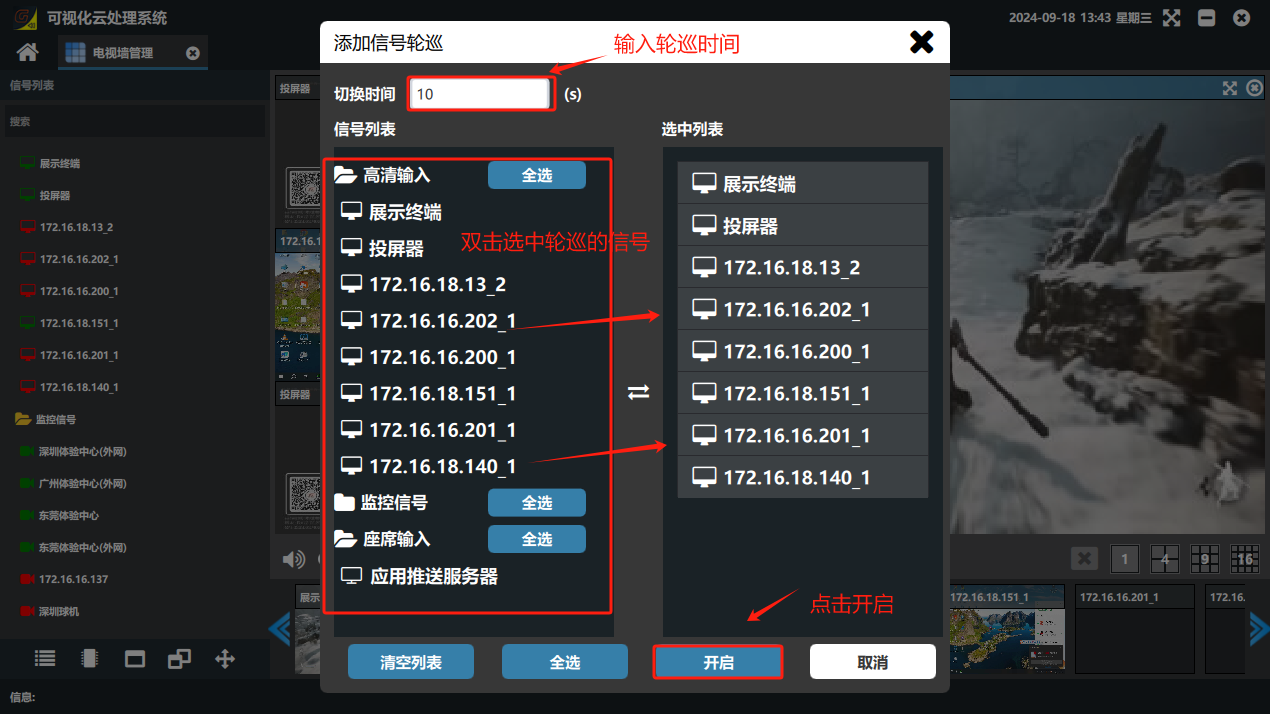
② On the “Add Signal Tour” page that opens, set the switch time → in the signal list select the signals to tour and double-click them; they are added to the selected list on the right → when done, click Enable to start the signal tour on that channel. Other channels are set the same way.
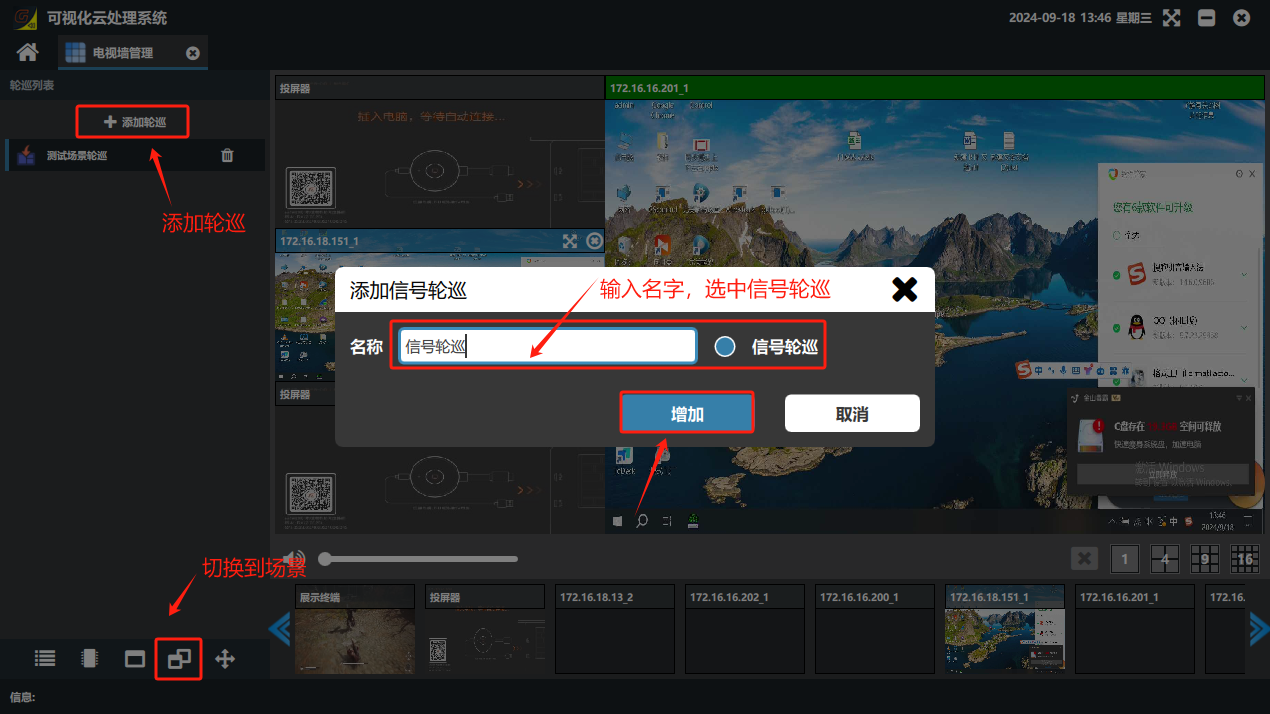
③ When all channels to tour are configured, click “Add Scene” in the “Tour” list → in the dialog that opens, select the checkbox “” in front of “Signal Tour” → enter a custom name → click Add.

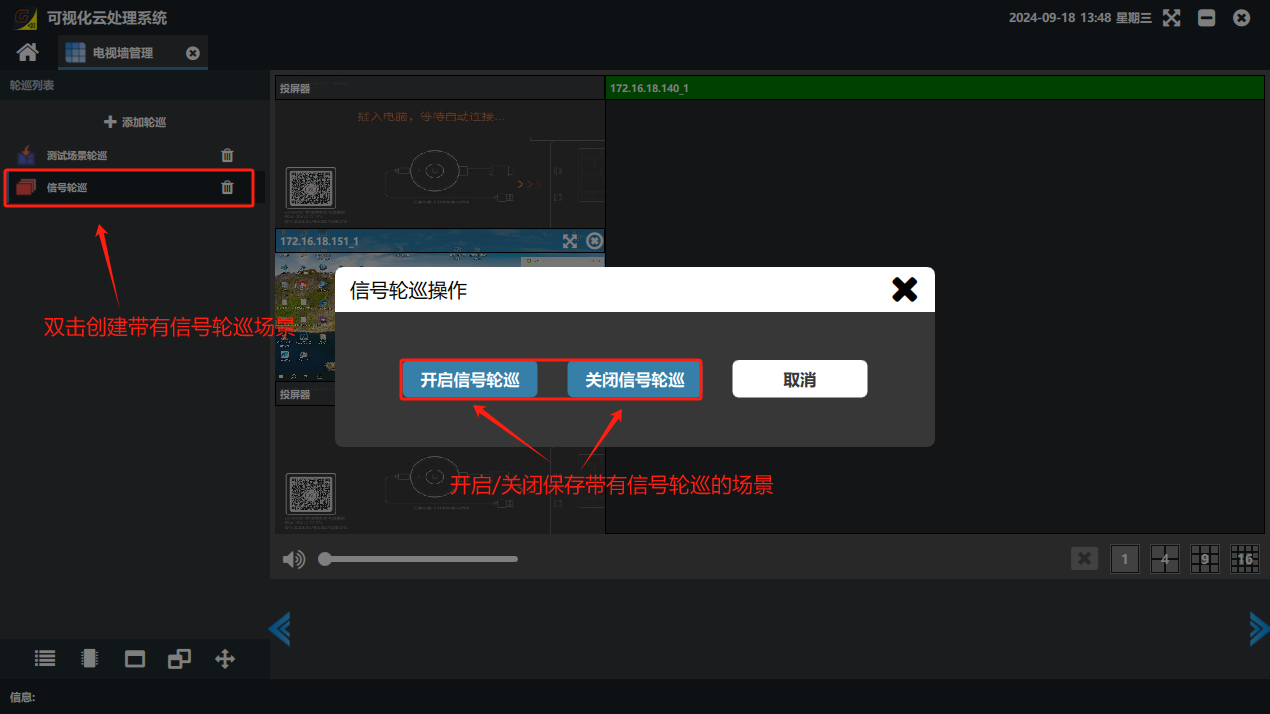
④ To run a tour mode, double-click it in the tour list; the dialog that opens lets you turn it on or off.
Did this page help you?One line of feedback helps us keep the steps accurate.