Documents
Add Monitoring Signals
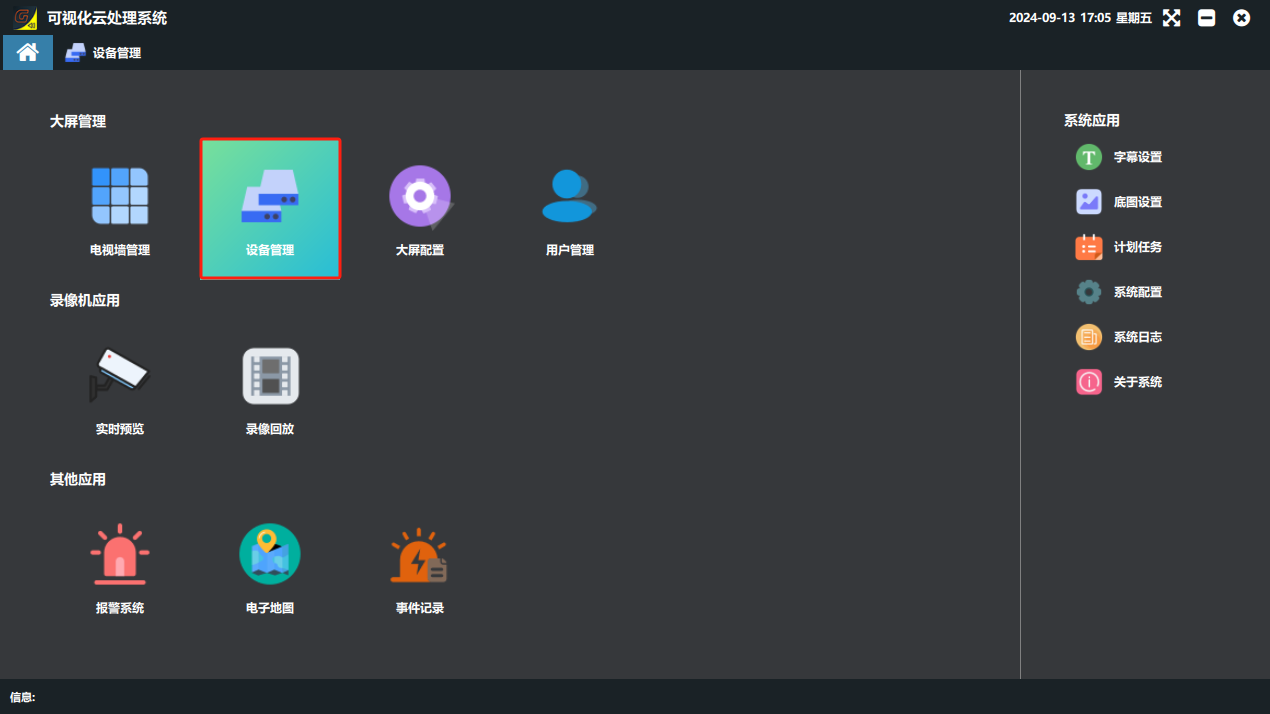
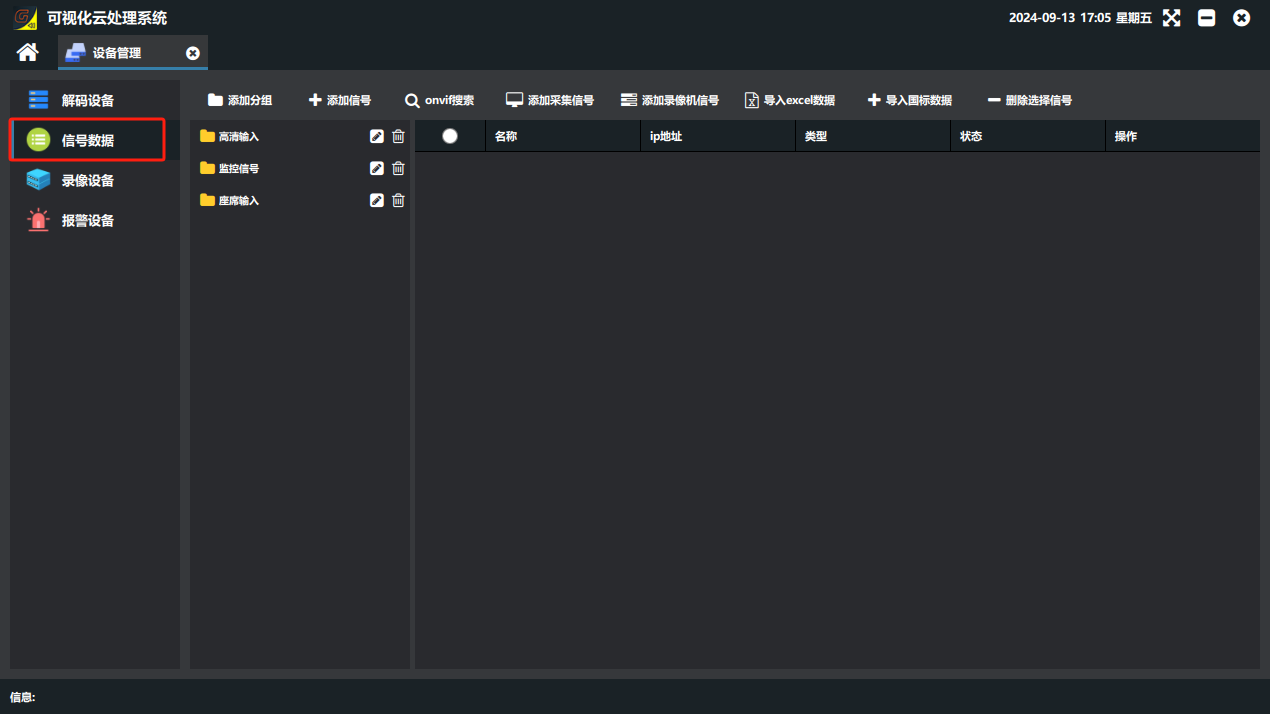
The signal addition entry is always Device Management --- “信号数据”(Signal Data) on the software home page (note: before adding monitoring signals, change the device ip to the same subnet as the cameras; see “Card Settings → Change the Card IP” below for details).
【Important】Before adding monitoring signals, you must confirm that the card IP has been changed to the same subnet as the cameras / NVR. Otherwise, even if the signal is added successfully, no picture can be decoded (the screen stays black). For how to change the card IP, see “13. Card Configuration → 1. Change the Card IP”.
1. Search and add monitoring signals
⚠️Important: most cameras ship with the ONVIF protocol disabled! If no device is found, log in to the camera web page first, enable ONVIF and create an ONVIF access account.
-
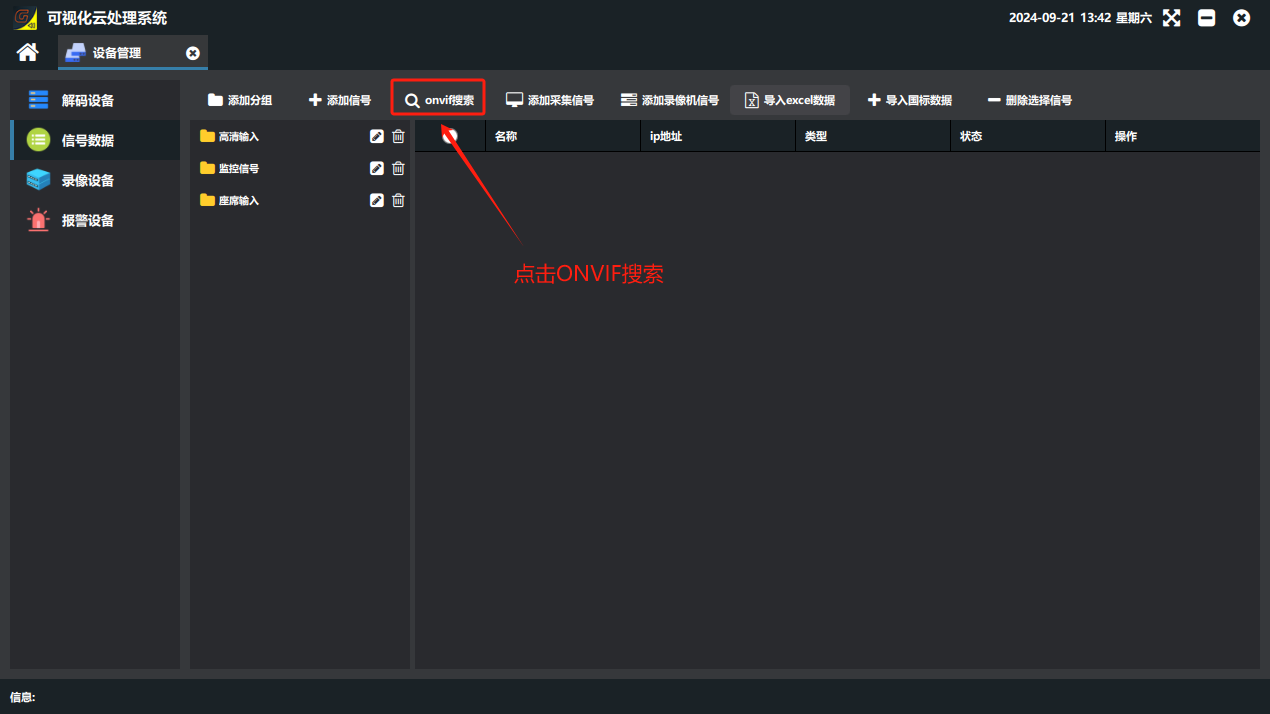
In Device Management → signal data, click 【onvif 搜索】(ONVIF Search);
-
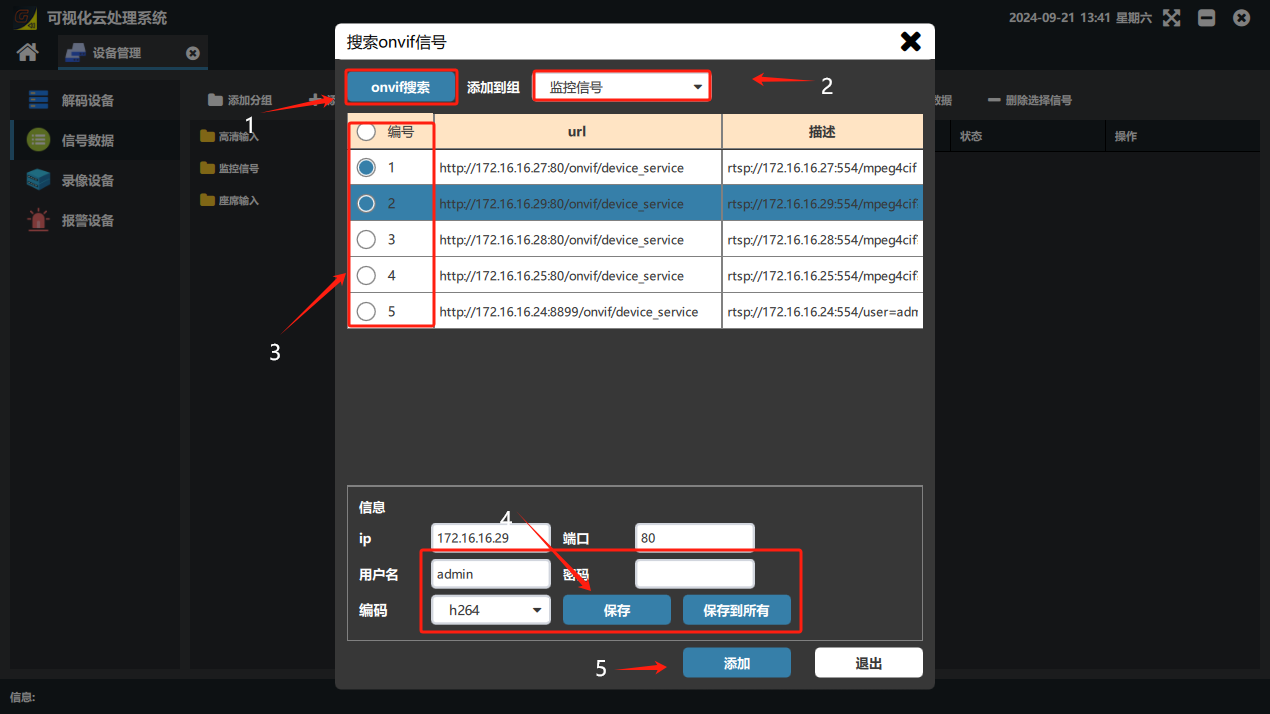
In the “搜索 onvif 信号”(Search ONVIF Signals) window that appears, click “onvif 搜索”;
-
Select the 分组(Group) to add to;
-
Select the searched monitoring signals to add;
-
In the information fields, enter the camera account, password and encoding method, and click Save;
-
Click Add.
2. Manually add a monitoring signal
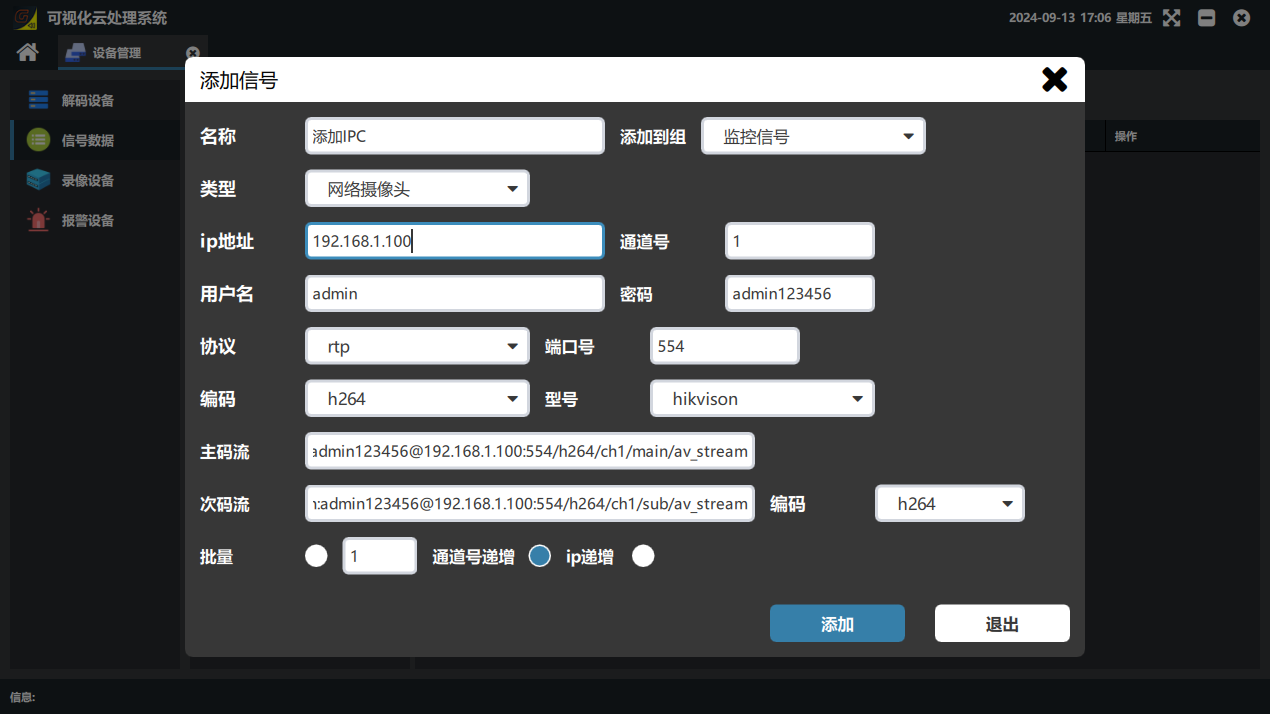
To add a single camera, use the method shown below.
Note:
** Name:** Enter the required name;
** Add to group:** Select the group to place it in;
** Type:** Select network camera;
** Ip address:** Enter the camera ip;
** Channel number:** Default “1”;
** User name:** The camera login user name;
** Password:** The camera login password;
** Protocol:** Select “rtp”;
** Port number:** Default “554”; if the camera port has been changed, enter the changed port number;
Encoding: The encoding below “Protocol” is the camera main stream encoding, and the encoding after “Sub stream” is the camera sub stream encoding. Select the encoding method according to the actual camera parameters;
** Model:** Select the corresponding camera brand.
3. Batch add cameras
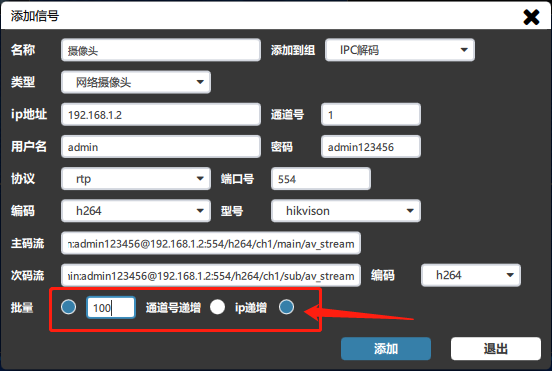
Note: Name: enter the required name.
Add to group: select the group to place it in.
Type: select network camera.
Ip address: enter the start camera ip.
Channel number: default “1”.
User name: the camera login user name.
Password: the camera login password.
Protocol: select “rtp”.
Port number: default “554”; if the camera port has been changed, enter the changed port number.
Encoding: the encoding below “Protocol” is the camera main stream encoding, and the encoding after “Sub stream” is the camera sub stream encoding. Select the encoding method according to the actual camera parameters.
Model: select the corresponding camera brand.
Batch: the number of cameras with consecutive ips to add
Batch option: to batch add single cameras, select “ip 递增”(IP increment)
Self-check when a monitoring signal is black / shows no picture after being added:
① Verify the camera / NVR user name, password and port number (default 554); ② confirm that the card IP and the camera / NVR are on the same subnet; ③ confirm that the camera encoding is H264/H265 and supported by the processor; ④ if the picture stutters or cannot be displayed, switch to the sub stream or lower the stream resolution appropriately.
4. Add NVR monitoring signals
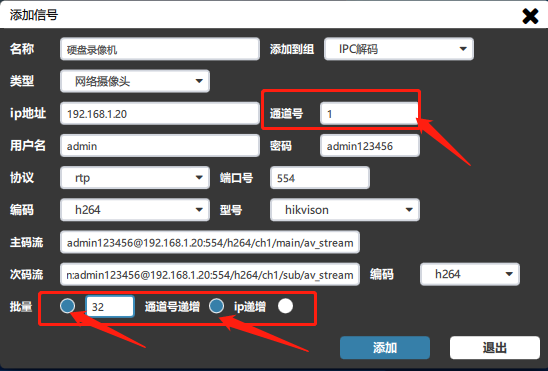
Note: Name: enter the required name.
Add to group: select the group to place it in.
Type: select network camera.
Ip address: enter the 硬盘录像机(NVR) ip.
Channel number: for Hikvision NVRs with 32 channels or fewer (including 32 channels), enter “33”; for Hikvision NVRs with 64 channels or more (including 64 channels) and NVRs of other brands (such as Dahua, Uniview, XM, etc.), the channel number defaults to “1”.
User name: the NVR login user name.
Password: the NVR login password.
Protocol: select “rtp”.
Port number: default “554”; if the NVR port has been changed, enter the changed port number. (Note: this port number is the rtsp protocol port)
Encoding: the encoding below “Protocol” is the camera main stream encoding, and the encoding after “Sub stream” is the camera sub stream encoding. Select the encoding method according to the actual camera parameters.
Model: select the corresponding NVR brand.
Batch: enter the number of NVR channels, or the actual number of cameras connected to the NVR.
Batch option: for an NVR, select “通道号递增”(Channel number increment).
Did this page help you?One line of feedback helps us keep the steps accurate.