Documentation
Getting Started
Devices and Assets
Publishing and Display
Scenes and Patrol
Management and Settings
Troubleshooting and Support
Web Remote Control
1. Add a cast signal
This asset type works with the mobile control app and supports Android and HarmonyOS phones and tablets.
Casting steps in the phone/tablet control app:
- ① Click the cast button in the top-left corner, ② click 开始投屏(Start Casting)
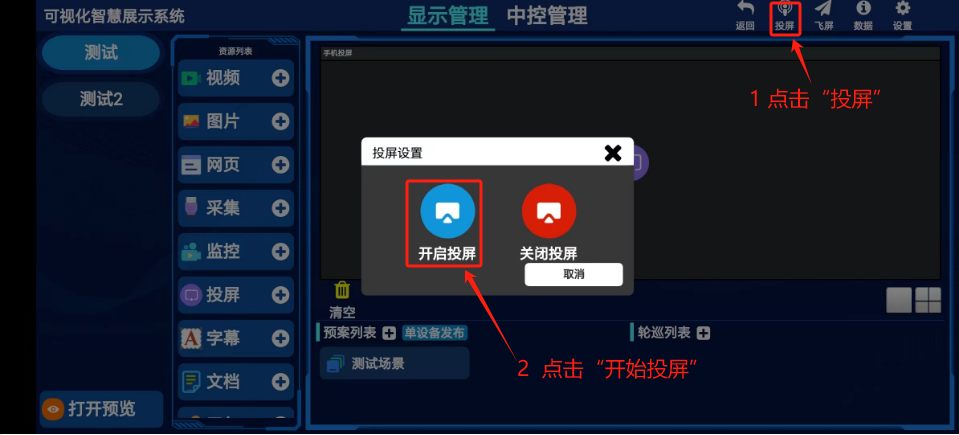
Adding a cast signal in the PC control software or the phone/tablet app
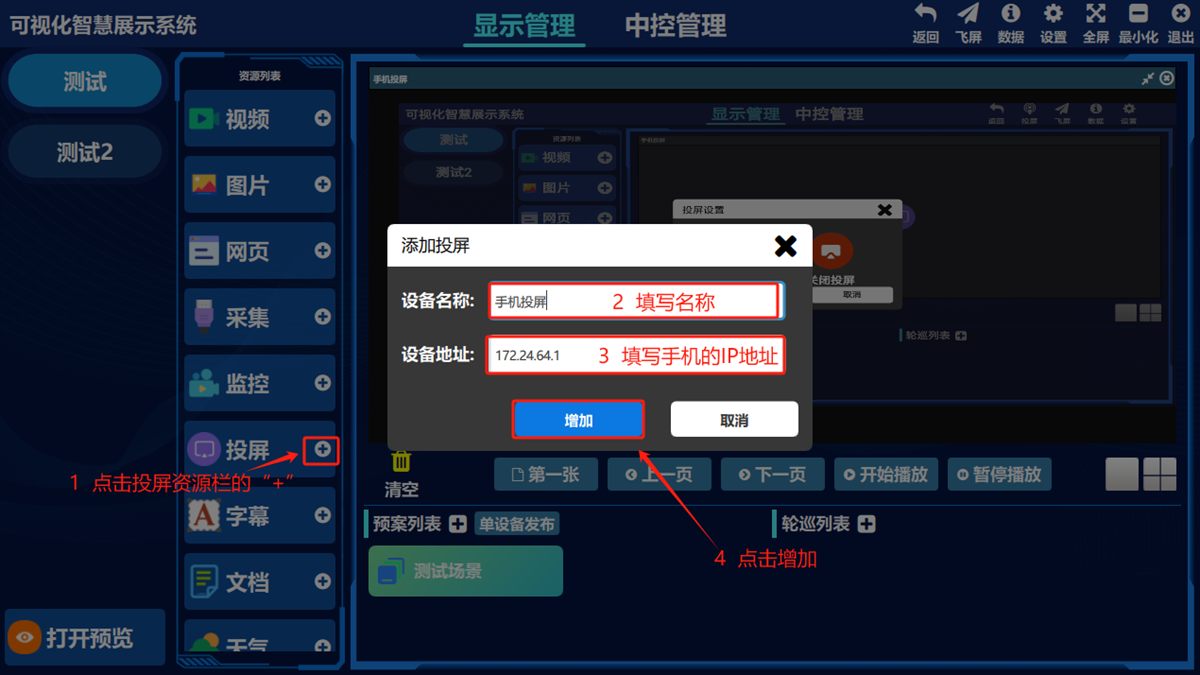
- ① Click the add button for 投屏(Cast), ② set a custom name, enter the IP address of the casting device and click 增加(Add)
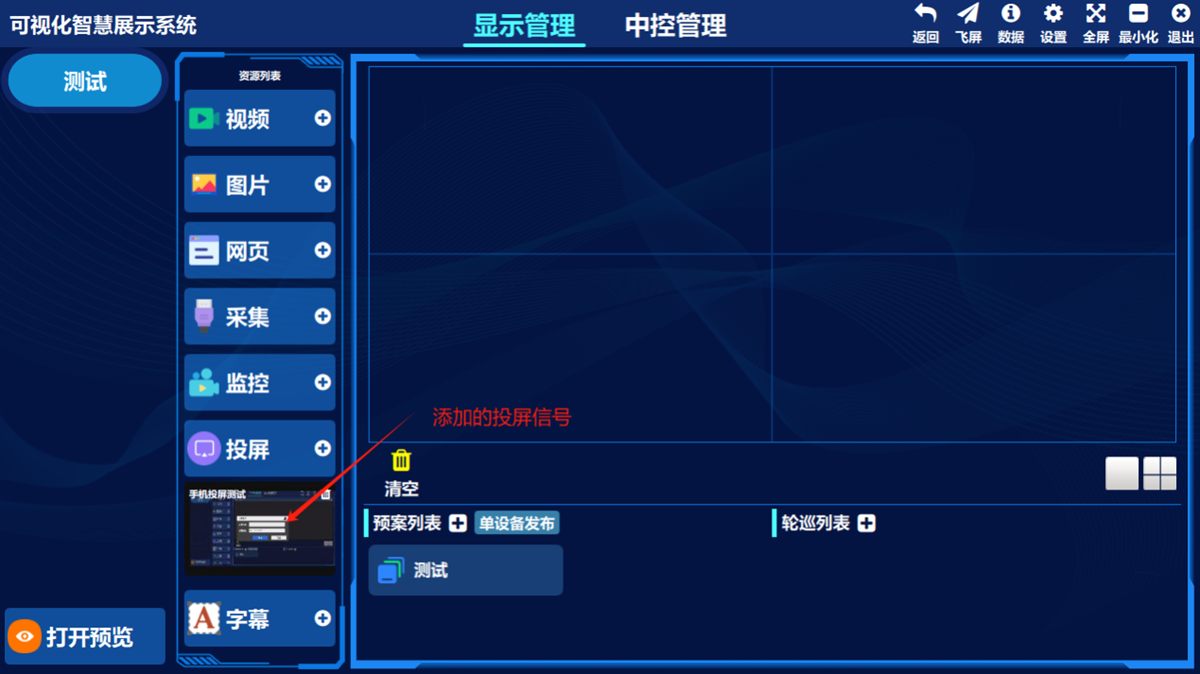
Click 投屏(Cast) in the left-hand asset list and the cast resource you have added appears in the preview pane below.
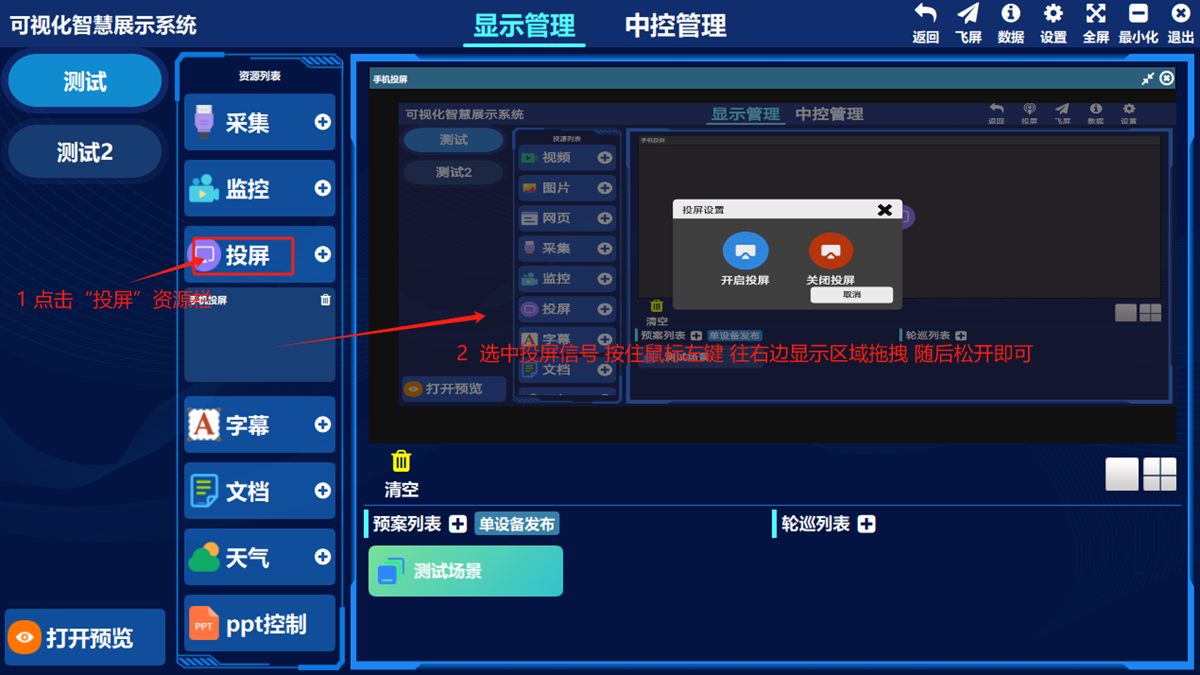
2. Publish a cast signal
- ① Click 投屏(Cast), select any cast signal you have added in the list, ② hold the left mouse button, drag it to the display area on the right and release the button.
Was this page helpful?A one-line note helps us make these steps more accurate.