Documentation
Getting Started
Devices and Assets
Publishing and Display
Scenes and Patrol
Management and Settings
Troubleshooting and Support
Accounts and Permissions
Change the sign-in account or password, or add multiple users
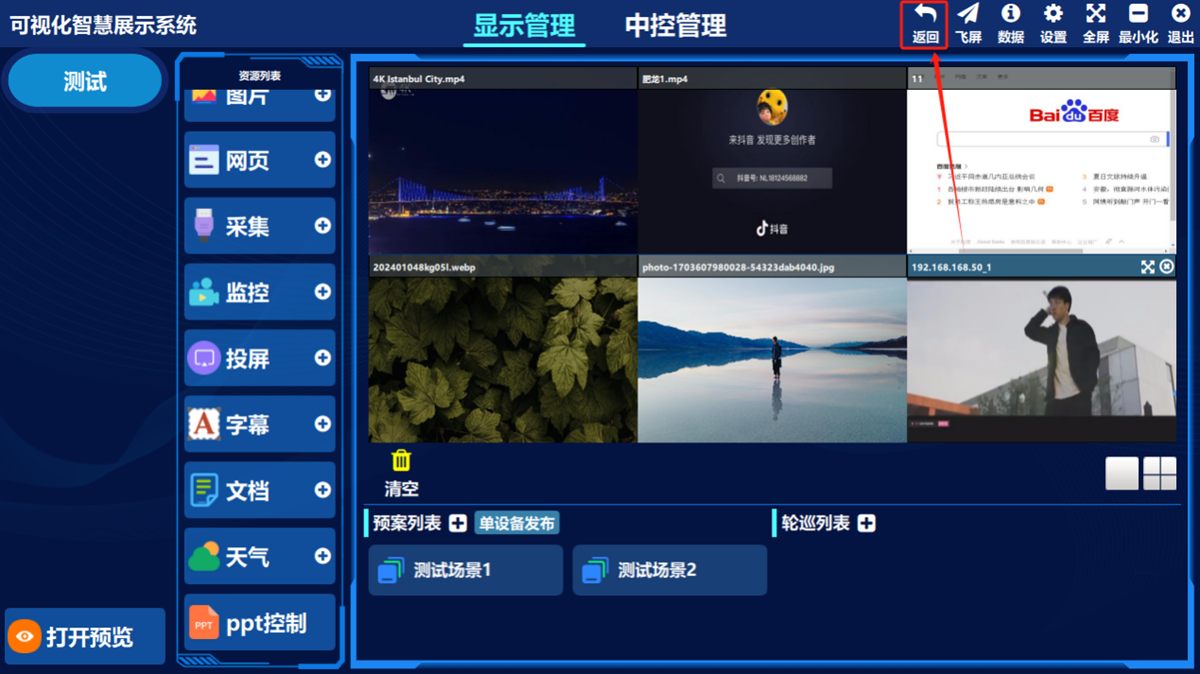
- ① Click the back button in the top-right corner of the software home screen, then click the user button in the bottom-left corner
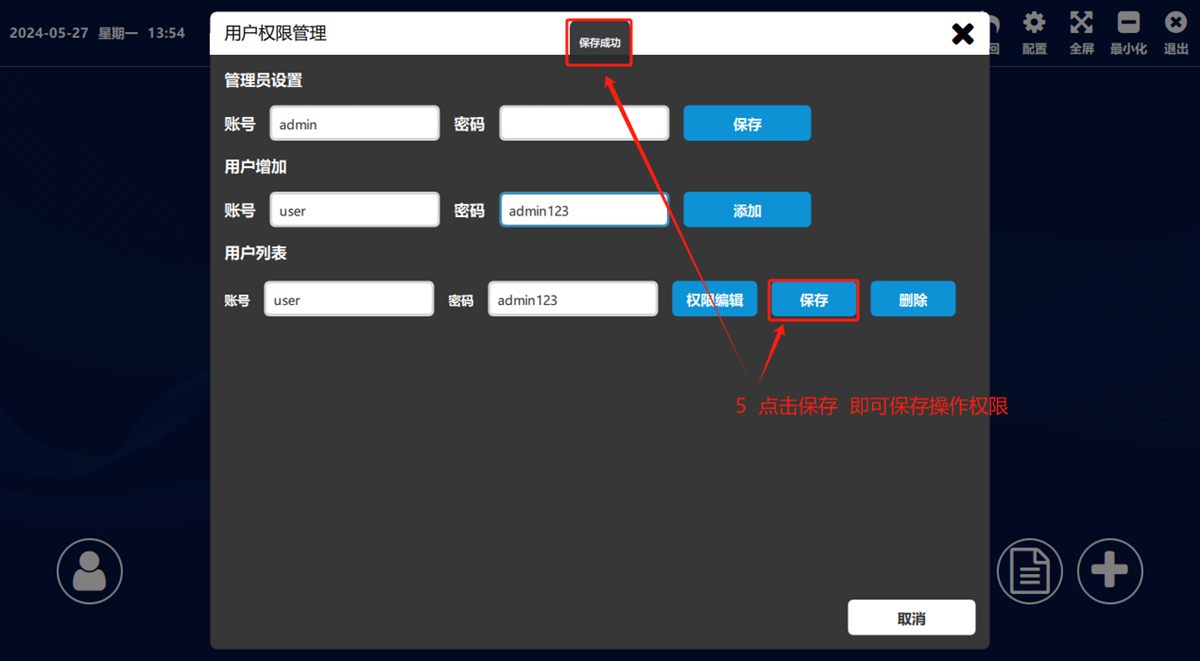
In 管理员设置(Administrator Settings) you can change the administrator account and password — click 保存(Save) to apply it. In 用户增加(Add User) you can add sign-in accounts and passwords — click 添加(Add) to apply them.
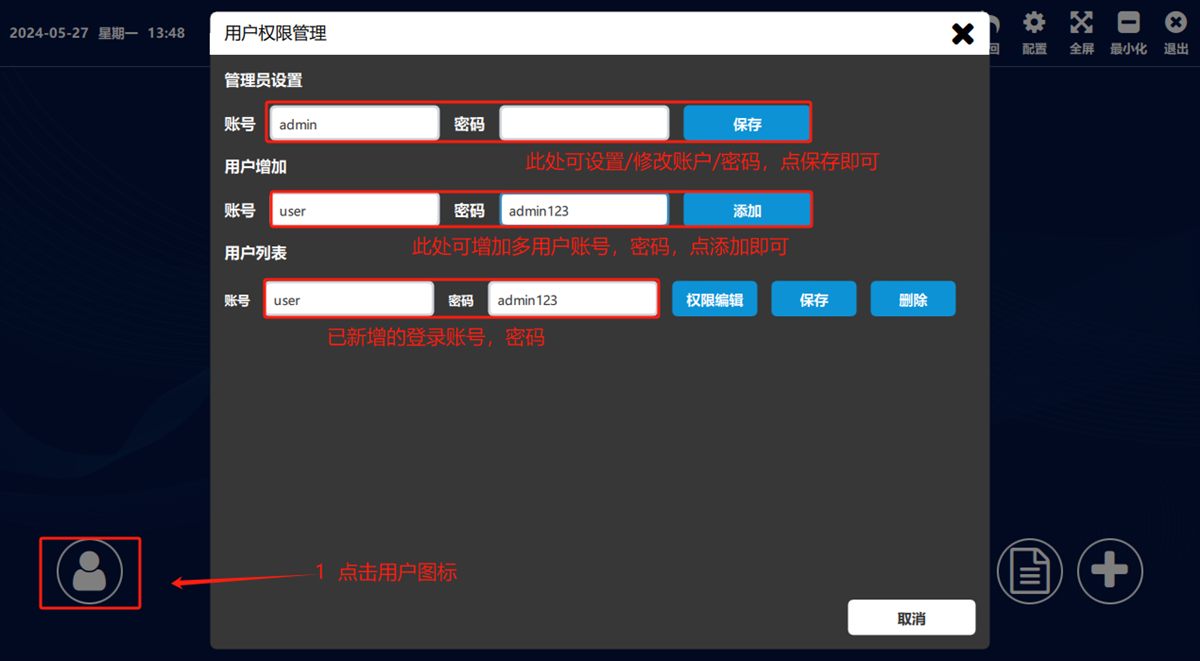
Edit user permissions (the administrator account holds every permission)
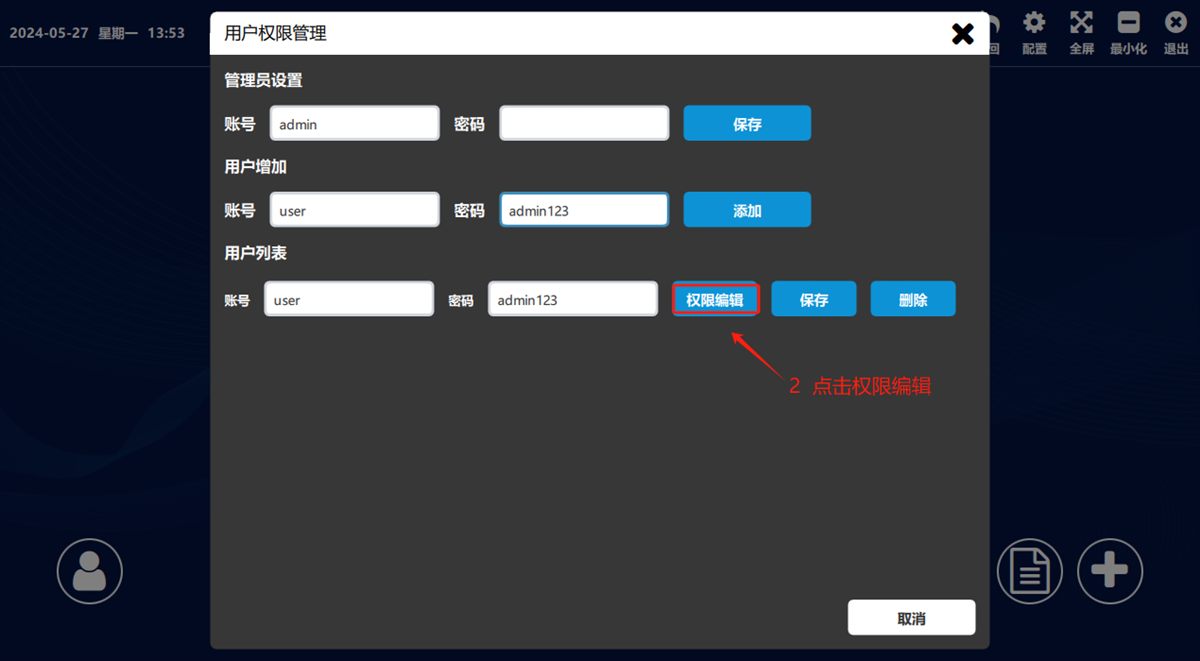
- ① Click 权限编辑(Edit Permissions) (as shown below)
In the pop-up box, double-click to select the specific permissions the user account may use, click 保存(Save), then click 返回(Back)
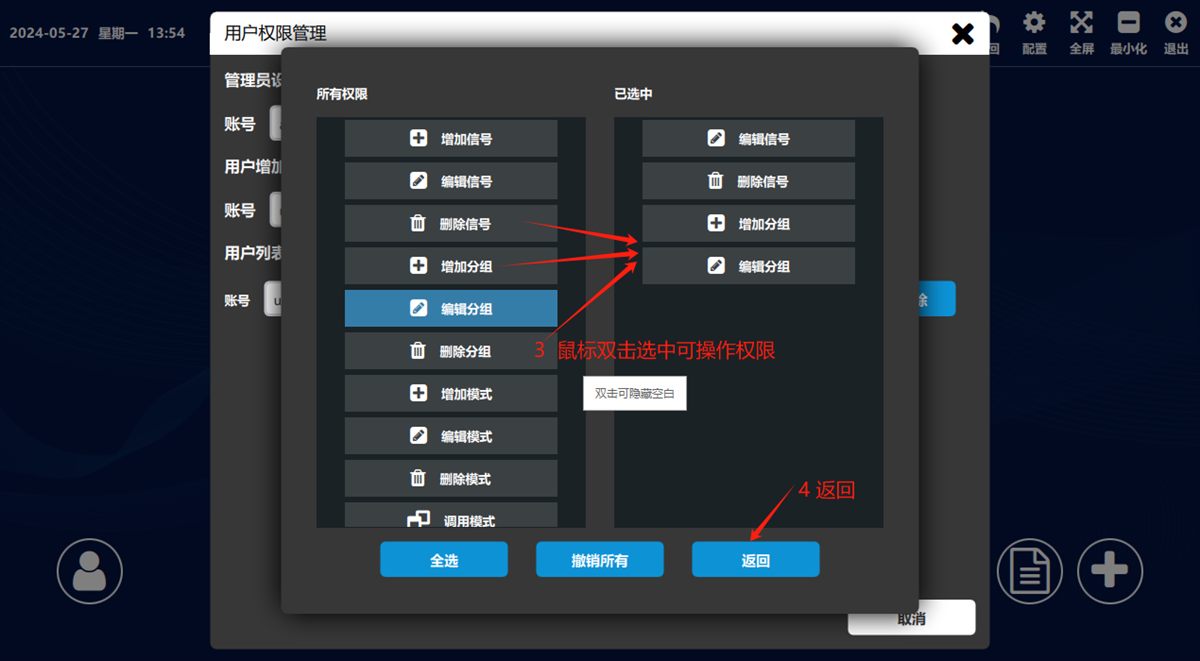
Click Save once more.
Was this page helpful?A one-line note helps us make these steps more accurate.