Documents
Crop Output Signals
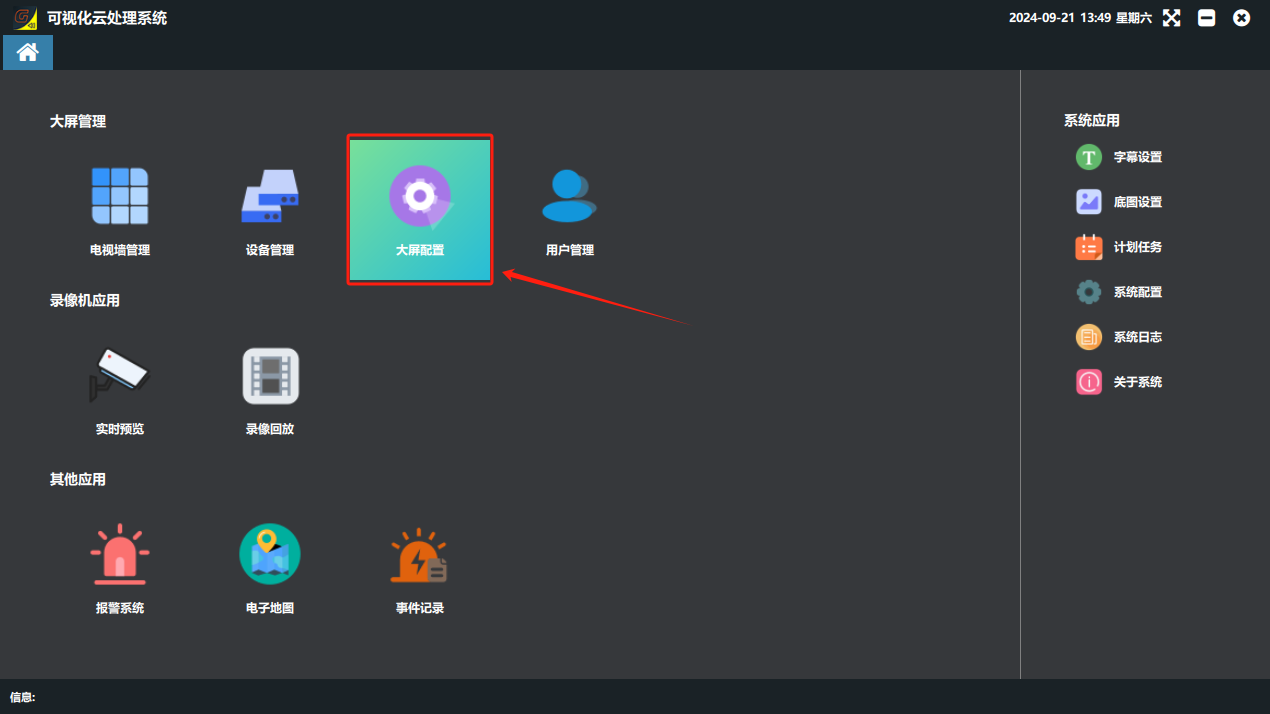
② Click the “大屏配置”(Video Wall Configuration) button in the software.
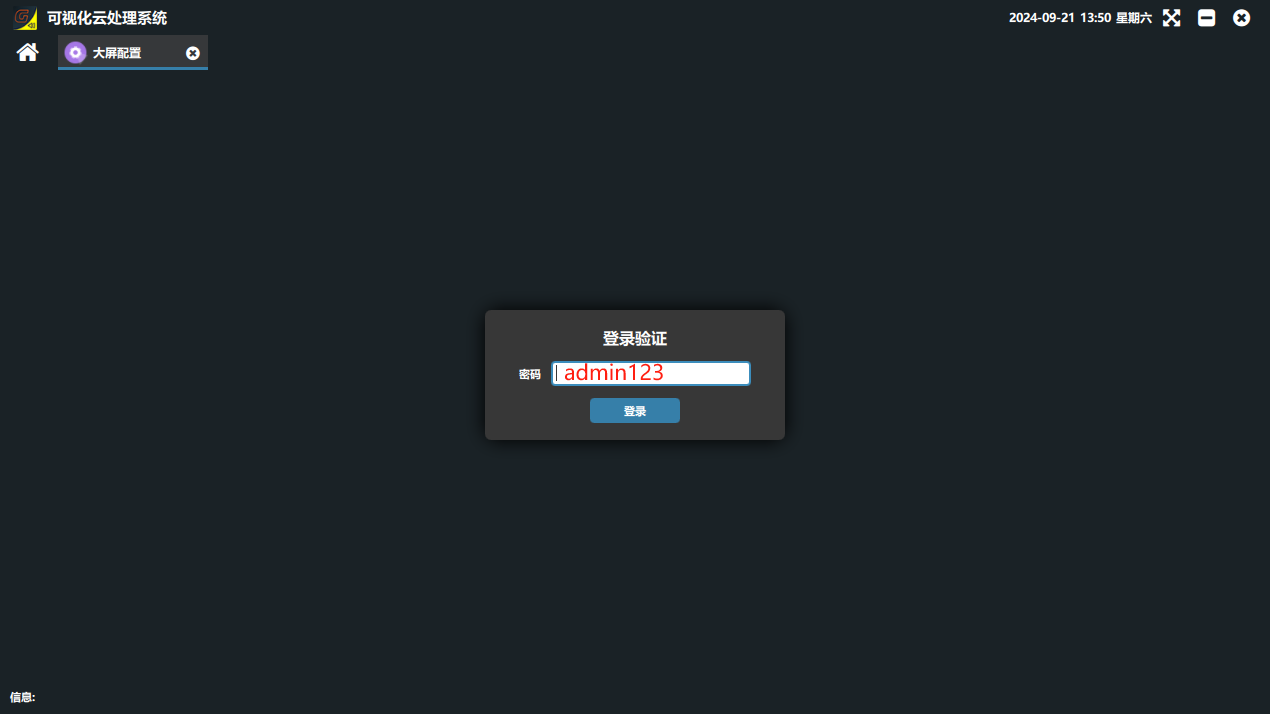
③ Configuration tool login password: admin123
③ In the configuration tool, first select the main control device and read it, then click crop settings; you can now see the read top/bottom/left/right pixel offsets.
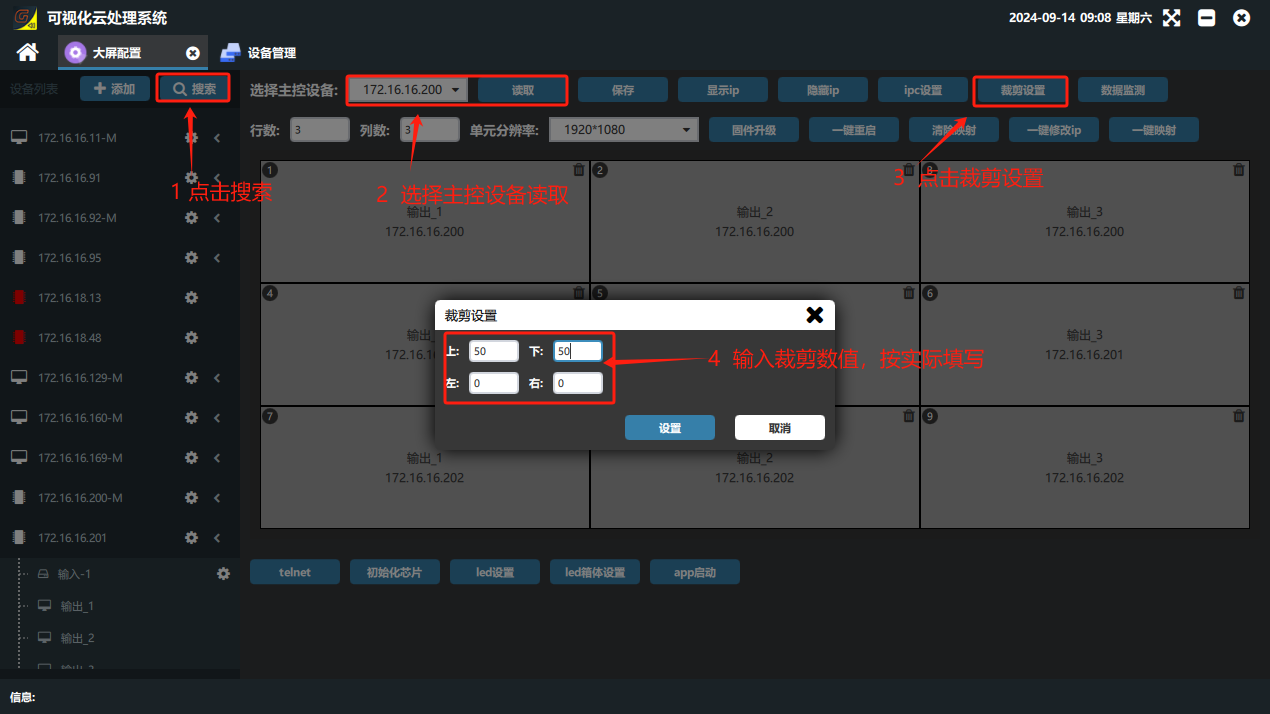
④ Enter the pixels to move according to the visual result. For example, with the settings below, the image on the video wall is offset by 50 pixels at the top, bottom, left and right, and is shown in the middle position.
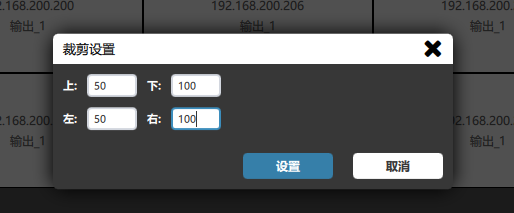
If all four values are set to 50, the image is shown toward the bottom-right corner.
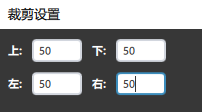
⑤ When the values are entered, click Set and the setting succeeds; it takes effect without clicking Save. Then restart the card and drag the image up again. Note!!! The visualization software must be reopened before you drag the image for display.
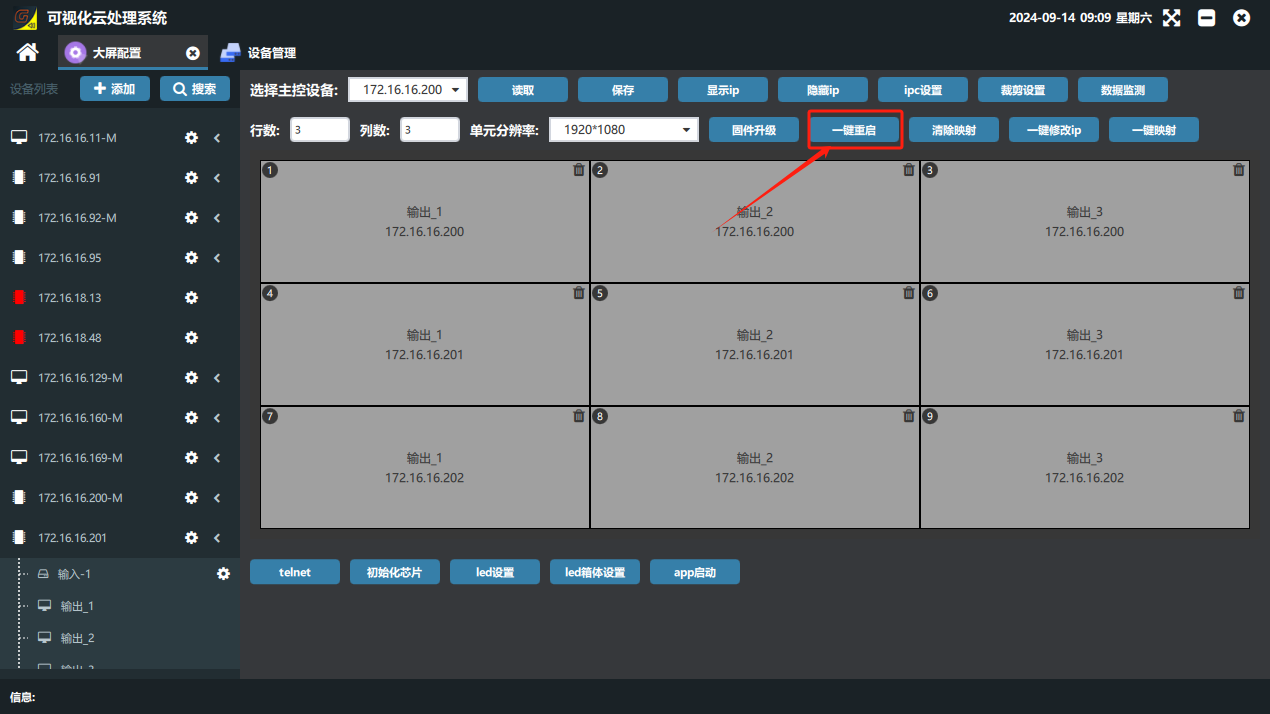
⑥ Recommendation: for the first commissioning, set any value and check the result; once the image has changed and taken effect, tune it according to the actual display result.
Did this page help you?One line of feedback helps us keep the steps accurate.